Solve printing problems with Tray Selector - Print how you want properly every time in a single click
📅 ✍️ By Tim Kempster

The Daily Printing Challenge
Suppose you have to print pages in different ways to different printers or printer trays throughout the day. You need to print some documents on letterhead, others on plain paper, some duplex, others single-sided, some with watermarks, and others without. Each time you print, you find yourself clicking through multiple dialog boxes, changing settings, and hoping you remembered everything correctly.
Sound familiar? This is one of the most common frustrations we hear from office workers, particularly in legal firms, accounting practices, and corporate environments where document presentation matters.
The Problem with Traditional Printing
Microsoft Word's built-in printing functionality is powerful, but it's designed for simplicity, not for users who need to frequently switch between complex printing configurations. Every time you need to change how you print, you must:
- Open the print dialog
- Select the correct printer
- Choose the right tray
- Set duplex options
- Configure page ranges
- Add or remove watermarks
- Set the number of copies
- Remember to change everything back for the next job
This process takes time, creates opportunities for errors, and interrupts your workflow. It's frustrating, inefficient, and completely unnecessary.
Print the Way You Want in a Single Click
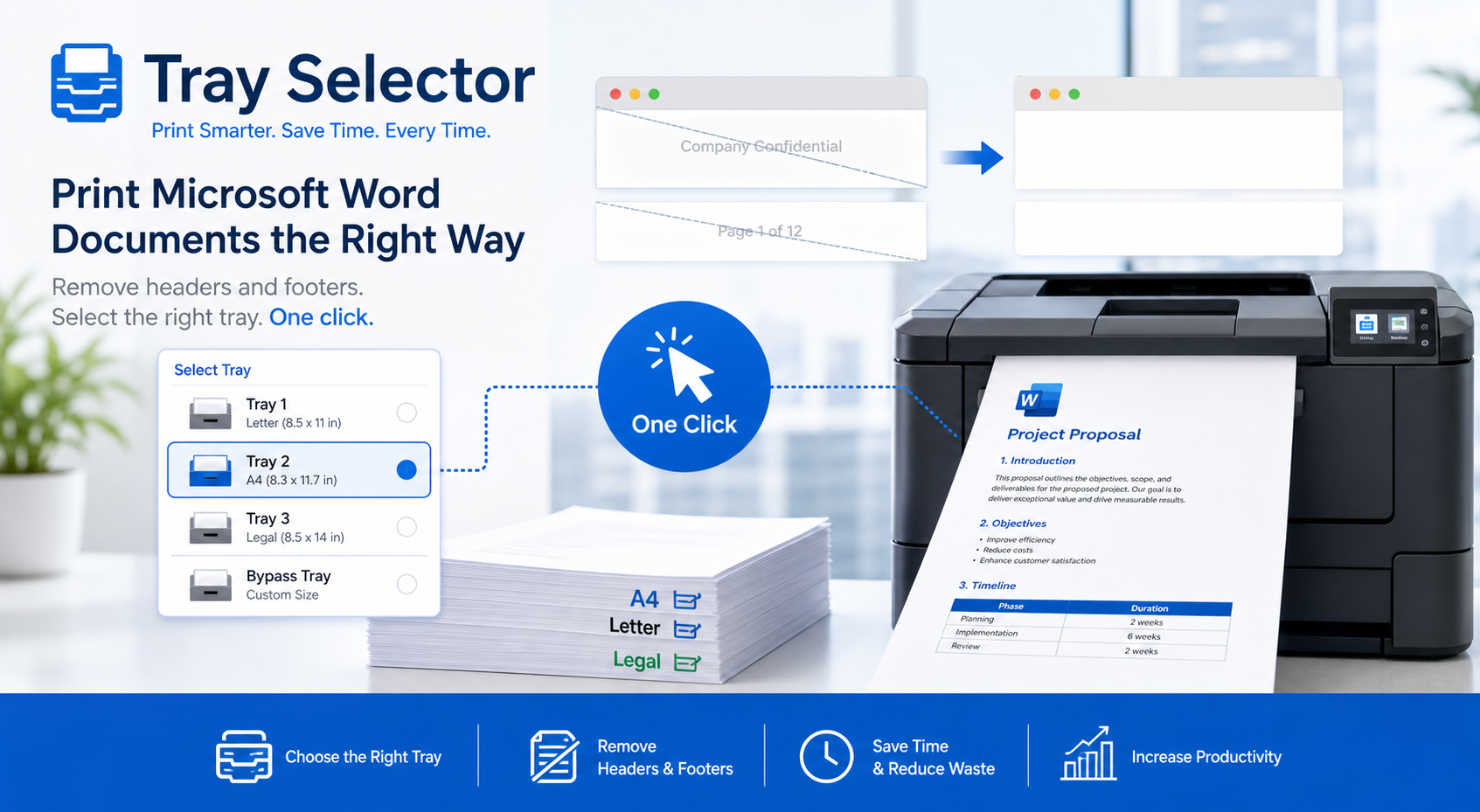
Tray Selector solves these printing problems by letting you set up a printing profile for each way you print and store them under a single button. You can recall that configuration with a single click from a Word toolbar or ribbon bar button.
With Tray Selector you are free to print the way you wish in a single click. The pre-set format means you can select the way you want to print once - quickly and easily - be it duplex, headed paper, draft, or any other configuration. From that point forward, it's just one click whenever you need that exact setup.
Real-World Printing Problems Solved
Problem 1: Switching Between Paper Types
The Challenge: You need to print executive summaries on premium letterhead from Tray 1, standard documents on plain paper from Tray 2, and draft copies on recycled paper from Tray 3.
The Traditional Way: Navigate to print settings, select the printer, choose the tray, print, then repeat the entire process for the next document with different settings.
The Tray Selector Solution: Create three buttons - "Executive", "Standard", and "Draft". Click the appropriate button for each document type. Done.
Problem 2: Complex Multi-Page Documents
The Challenge: Legal documents often require page 1 on letterhead, pages 2-10 on plain paper, and page 11 on colored backing paper.
The Traditional Way: Print page 1 separately with letterhead, print pages 2-10 with plain paper, print page 11 with backing paper. Hope you didn't make any mistakes in the page numbering.
The Tray Selector Solution: Create a single "Legal Package" button that automatically routes different page ranges to different trays. One click, three trays, perfect results every time.
Problem 3: Duplex Confusion
The Challenge: Some documents need duplex printing, others don't. You frequently forget to change the setting and waste paper or have to reprint.
The Traditional Way: Check printer properties before every print job, toggle duplex on or off, print, hope you remember to change it back.
The Tray Selector Solution: Create separate buttons for "Single-Sided" and "Duplex". The button name reminds you which mode you're using, and settings are always correct.
Problem 4: Multiple Printers
The Challenge: You have a color printer for presentations, a black-and-white printer for drafts, and a high-quality printer for client documents.
The Traditional Way: Select the correct printer from the dropdown every time, making sure you don't accidentally send expensive color jobs to the wrong device.
The Tray Selector Solution: Create buttons for each printer - "Color Presentation", "Draft B&W", and "Client Quality". The printer selection is built into the button.
Problem 5: Watermarking Inconsistency
The Challenge: Confidential documents need a "CONFIDENTIAL" watermark, drafts need a "DRAFT" watermark, and final versions need no watermark.
The Traditional Way: Manually add and remove watermarks through Word's design tab before printing, remember to delete them afterward.
The Tray Selector Solution: Create buttons that automatically apply the correct watermark before printing and remove it afterward. Your document is never permanently modified.
Resources Available to Solve Your Printing Problems
There are several printing resources available on the Internet which can help you solve printing problems. One such resource is a print utility called Tray Selector. Unlike generic printing advice that tells you to adjust settings manually, Tray Selector provides a practical, automated solution that actually eliminates the problems rather than just working around them.
Used in Law Firms All Over the World
Hundreds of legal firms - from just a few users to several hundred lawyers - are finding that this print software is easing their many printing hassles. Law firms have particularly complex printing needs:
- Court documents with specific formatting requirements
- Client correspondence on letterhead
- Internal documents on plain paper
- Draft versions for review
- Confidential materials with watermarks
- Multi-part documents with exhibits
The time savings add up quickly. If a legal secretary saves just 30 seconds per document by not having to configure print settings, and they print 50 documents per day, that's 25 minutes saved daily - over 100 hours per year per person!
Beyond Legal: Other Industries Benefiting
While law firms represent a significant user base, Tray Selector solves printing problems across many industries:
Accounting Firms
Financial reports on premium paper, internal documents on standard stock, client letters on letterhead - all with different printer settings.
Real Estate
Property listings on glossy paper, contracts on legal-sized paper, internal memos on plain stock.
Healthcare
Patient documents with specific privacy watermarks, administrative forms, official correspondence on letterhead.
Education
Course materials, official transcripts, administrative documents - each with different quality and paper requirements.
Corporate Offices
Presentations for executives, standard documents for staff, draft copies for review.
The Cost of Printing Problems
Printing problems aren't just annoying - they cost real money:
- Wasted time: Minutes per day add up to hours per month across your organization
- Wasted paper: Printing errors mean reprinting documents
- Wasted expensive paper: Accidentally printing drafts on letterhead
- Reduced productivity: Interruptions break workflow and reduce focus
- Increased stress: Constant vigilance about printer settings is mentally taxing
- Professional errors: Sending a client document with the wrong format or missing pages
How Tray Selector Solves These Problems
Tray Selector addresses all these issues with a simple, elegant approach:
- Configure once: Set up each printing configuration exactly how you want it
- Name it clearly: Give each button a descriptive name so you always know what it does
- Click and forget: From that point forward, printing is one click
- Share configurations: Export button settings and share them with your team
- Never worry again: Settings are always correct, every time
Key Features That Solve Printing Problems
- Multiple printer profiles: Up to 20 different button configurations
- Tray selection: Specify which tray for any print job
- Printer selection: Choose which physical printer to use
- Page ranges: Print specific pages to specific trays
- Duplex control: Single or double-sided printing pre-configured
- Watermark automation: Apply and remove watermarks automatically
- Copy management: Specify number of copies per button
- Button chaining: Trigger multiple print jobs sequentially
- PDF creation: Generate PDF copies alongside printed documents
Getting Started: Your First Three Buttons
When you first install Tray Selector, we recommend starting with these three essential buttons:
Button 1: "Quick Draft"
Single-sided printing to your default printer's main tray using plain paper. Perfect for internal reviews and quick reference copies.
Button 2: "Client Letter"
First page from letterhead tray, remaining pages from plain paper tray. This is the most common professional document format.
Button 3: "Duplex Standard"
Double-sided printing on plain paper for longer documents where paper savings matter.
Once you're comfortable with these three, you can add more specialized buttons as needed.
The Bottom Line
Printing problems waste time, money, and mental energy. They're frustrating, unnecessary, and easily solved. Tray Selector eliminates these problems by letting you configure your most common printing tasks once and then execute them with a single click forever after.
Whether you're in a law firm managing complex legal documents or any office environment with varied printing needs, Tray Selector provides a practical, automated solution that actually works.
Ready to solve your printing problems? Download Tray Selector and start your free 7-day trial today. Experience what printing should be like - fast, accurate, and effortless.