Trouble shoot loading problems in Tray Selector
📅 ✍️ By Tim Kempster
Understanding Word Add-In Resiliency
From Word 2013 onwards, Microsoft implemented a feature called "Add-In resiliency." This is a new feature which aims to ensure that Word Add-ins like Tray Selector do not make Word unreliable. While this is generally a good thing, users need to be careful in some situations as it can lead to Word removing Add-ins from Word and marking them disabled.
In most cases it is simple to re-enable these add-ins, but in some cases admin intervention is required. This guide walks you through all the methods to get Tray Selector working again if it disappears from your Word ribbon.
How Tray Selector Becomes Disabled
We have taken great care to ensure that Tray Selector does not cause any problems that can cause Word to disable it, but despite this it can still happen in some isolated cases. The most common scenario is when Word is 'forced closed' from Task Manager or via rebooting a machine while Word is running.
When Word restarts after being forced to close, it sometimes prompts users to disable Tray Selector by showing this dialog box:
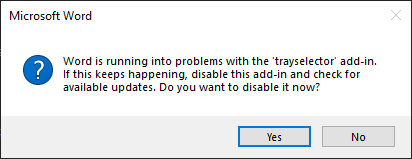
IMPORTANT: If users see this dialog box, it is very important that they click the 'No' button. If they click "Yes," then Word will run without showing Tray Selector until it is manually re-enabled.
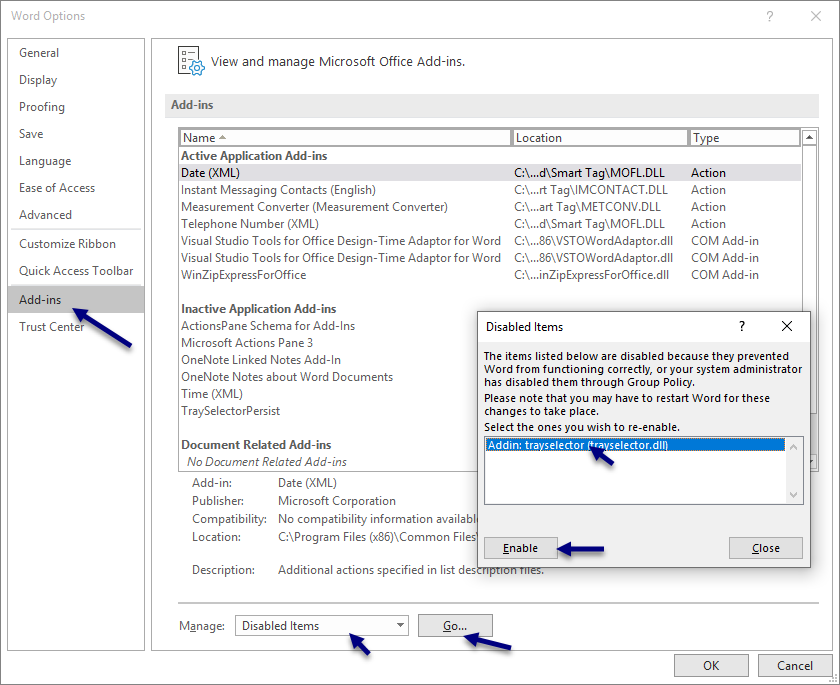
Method 1: Re-enabling via Disabled Items
If a user inadvertently clicks 'Yes' on the disable prompt, all is not lost! It is possible to re-enable Tray Selector as follows:
- In Word, click File → Options to show the Word Options Dialog Box
- From the left-hand menu on the dialog box, click "Add-Ins"
- At the bottom of the main part of the dialog box, select "Disabled Items" from the dropdown list labelled "Manage"
- Click "Go..."
This will show the "Disabled Items" Dialog box. Continue with:
- Select Tray Selector from the list (if it's there)
- Click "Enable"
- Click "Close" on the Disabled Items dialog box
- Click "OK" on the Word Options Dialog box
- Restart all Word windows
Tray Selector should now be present in the ribbon bar!
Method 2: Re-enabling via COM Add-ins
In some cases, additional steps are required. This method addresses situations where Tray Selector isn't in the Disabled Items list but still isn't loading. Follow these steps:
- Click File → Options to show the Word Options Dialog Box
- From the left-hand menu, click "Add-Ins"
- At the bottom of the main part of the dialog box, this time select "COM Add-Ins" from the dropdown list labelled "Manage"
- Click "Go..."
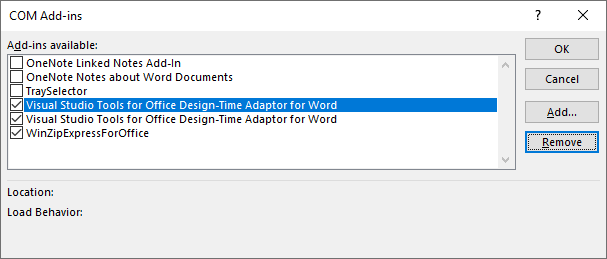
This will show the "COM Add-ins" Dialog box. Continue with:
- Check the box next to Tray Selector
- Click "OK"
- Click "OK" to close the Word Options dialog box
- Tray Selector should appear in the ribbon bar
- Restart Word and make sure Tray Selector is still present
Method 3: Advanced Re-registration (For Persistent Issues)
From time to time, when Word is restarted after Method 2, the Tray Selector Add-In is still not loaded. This seems to be a bug in Word and hopefully will be fixed in a later edition. If this is the case, then further steps can be taken to make sure the Add-In 'sticks' in place.
This method involves removing and re-adding the Add-In registration:
- Open the COM Add-Ins dialog box (File → Options → Add-Ins → Manage: COM Add-ins → Go...)
- Click on Tray Selector in the list to highlight it in blue
- At the bottom of the dialog box, take a note of the file location ending in adxloader.dll
- Click the "Remove" button on the right-hand side to remove the Add-In
- Click the "Add..." button
- Navigate to the location you noted in step 3 and select adxloader.dll
- Click "OK"
- Restart Word
This time Tray Selector should persist and remain available even after multiple Word restarts.
Method 4: Using the EnableTraySelector Utility
We have also created an executable program which we ship in the installation folder for Tray Selector (usually C:\Program Files (x86)\TraySelector\One) called EnableTraySelector.exe. This ships with the latest version of Tray Selector.
To use this utility:
- Close all instances of Microsoft Word
- Navigate to your Tray Selector installation folder (usually
C:\Program Files (x86)\TraySelector\One) - Double-click EnableTraySelector.exe
- Wait for the utility to complete
- Restart Word
This utility carries out all the necessary steps above automatically to re-enable Tray Selector, saving you time and ensuring nothing is missed.
Why Does This Happen?
Understanding why this occurs can help prevent it in the future:
- Forced shutdowns: When Windows or Word crashes, or you force-close via Task Manager
- System reboots: Restarting your computer while Word is still running
- Unexpected errors: Other software conflicts or system issues during Word startup
- Updates: Sometimes Windows or Office updates can trigger this behavior
The key point is that Tray Selector itself isn't causing problems - it's Word's protective mechanism being overly cautious after detecting an abnormal shutdown.
Preventing Future Disabling
While you can't completely prevent this from ever happening, you can reduce the likelihood:
- Close Word properly: Always use File → Exit or click the X button, rather than forcing closure
- Save work regularly: This reduces the temptation to force-close a frozen Word window
- Wait for Word to respond: If Word appears frozen, give it a minute before taking action
- Close before rebooting: Always close Word before restarting your computer
- Keep Windows updated: Updates often fix stability issues that cause crashes
When to Contact Support
If you've tried all the methods above and Tray Selector still won't load, or if it keeps getting disabled repeatedly, it's time to contact our support team. We can help with:
- Advanced troubleshooting for persistent loading issues
- Group Policy configurations in corporate environments
- Conflicts with other Add-ins or security software
- Custom installation scenarios
- Remote assistance to diagnose and fix the problem
If you want a copy of the EnableTraySelector.exe utility or if you need any further assistance, please contact us. When contacting support, please include:
- Your version of Microsoft Word (e.g., Word 2016, Word 365)
- Your version of Tray Selector
- Which methods you've tried
- Whether the problem occurs after every Word restart or only sometimes
- Any error messages you've seen
For IT Administrators
If you're managing Tray Selector across multiple machines in your organization, you may want to:
- Create a Group Policy: Configure Add-In resilience settings to be less aggressive
- Use the utility in scripts: Include EnableTraySelector.exe in your deployment or maintenance scripts
- Document the process: Train your helpdesk staff on these re-enabling procedures
- Monitor for patterns: If many users experience this, there may be an environmental issue to address
Quick Reference Guide
Here's a quick decision tree for fixing Tray Selector loading issues:
- Is Tray Selector missing from the ribbon?
- Yes → Try Method 1 (Disabled Items)
- Did Method 1 work?
- No → Try Method 2 (COM Add-ins)
- Did Method 2 work but it disappeared again after restart?
- Yes → Try Method 3 (Advanced Re-registration)
- Want the easiest solution?
- Use Method 4 (EnableTraySelector.exe utility)
- Still not working?
The Bottom Line
While it's frustrating when Word disables Tray Selector, the good news is that it's almost always easy to fix. The methods outlined in this guide work in the vast majority of cases, and our support team is always available if you need additional help.
Remember: This isn't a problem with Tray Selector itself - it's Word's Add-In resilience feature being overly protective. Once you understand the re-enabling process, you can get back to productive printing in just a few clicks.
Need help with Tray Selector? Contact our support team - we're here to ensure you have a smooth, trouble-free experience with your printing workflow.